

To scan receipts and expense records efficiently, use your smartphone with OCR-enabled apps that automatically extract key details like dates and amounts. Capture receipts instantly on the go, avoiding bulky scanners or manual data entry. Save images directly to cloud storage for secure, organized access across devices. Tagging and categorizing receipts help keep records tidy and easy to find. If you want practical tips to optimize this process further, keep exploring the details below.

Prime made for students and young adults
- Fast, free delivery for dorm and study essentials
- Prime Video and Amazon Music included
- Member-only deals
Key Takeaways
- Use mobile scanning apps with OCR technology to instantly capture and extract key expense data from receipts.
- Organize digital receipts in cloud storage with clear categories, tags, and folders for quick retrieval.
- Automate receipt uploads and data extraction to minimize manual entry and reduce errors.
- Backup receipts regularly to cloud platforms to ensure secure, accessible records across devices.
- Streamline expense management by integrating scanned records with accounting or budgeting software.
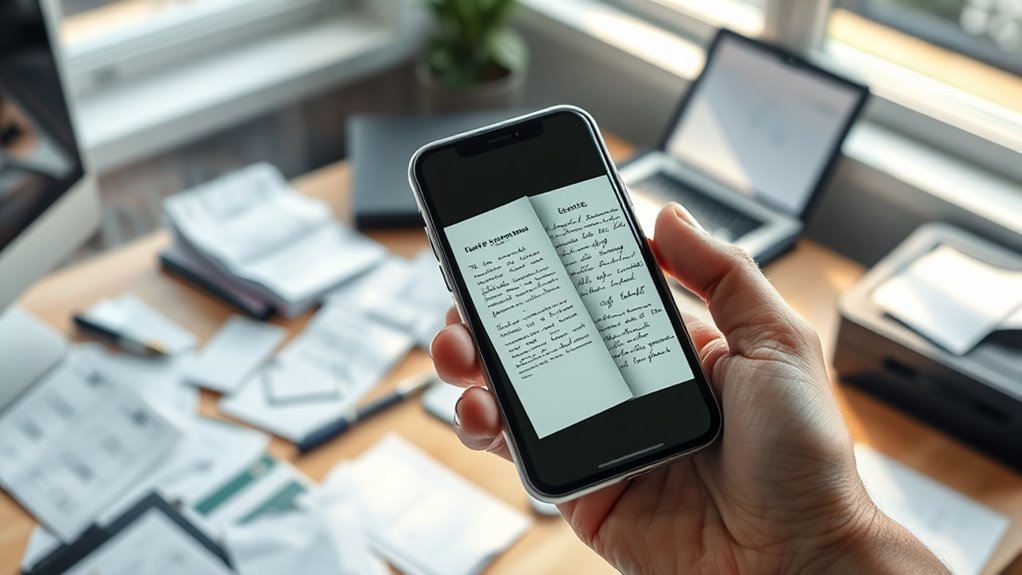
Keeping track of receipts and expense records can be a tedious task, but using the right scanning methods makes it much easier. Mobile scanning is a game-changer because it lets you capture receipts instantly with your smartphone, eliminating the need for bulky scanners or manual entry. With a few taps, you can photograph your receipts and convert them into digital files. Many apps now utilize optical character recognition (OCR) technology, which automatically extracts relevant data like date, amount, and vendor details. This means you spend less time manually inputting information and more time focusing on your work or business. Mobile scanning also offers the convenience of scanning receipts on the go, whether you’re traveling, at a restaurant, or in a meeting. Instead of collecting paper clutter, you can keep everything digitized and organized in real time. Incorporating digital organization strategies can further streamline your record-keeping process.
Once you’ve scanned your receipts, cloud storage becomes your best ally for keeping everything accessible and safe. Cloud platforms like Google Drive, Dropbox, or specialized expense management apps sync your scanned files across devices, so you can access them whenever needed. This setup ensures your records are backed up automatically, reducing the risk of losing important receipts due to lost paper or device failure. Additionally, cloud storage allows you to organize your digital receipts into folders or categories, making future retrieval straightforward. You can tag receipts by date, expense type, or project, streamlining your bookkeeping process. Cloud-based solutions also enable collaboration if you’re working with accountants or team members—they can access the stored receipts securely without needing physical copies or email exchanges.
As an affiliate, we earn on qualifying purchases.
Frequently Asked Questions
How Do I Organize Scanned Receipts for Quick Retrieval?
To organize your scanned receipts for quick retrieval, create a clear digital folder structure based on categories like date, vendor, or expense type. Use tagging and categorization to add relevant keywords, making searches easier. Regularly update and maintain your system, and consider using naming conventions that include key details. This way, you’ll find receipts swiftly whenever you need them, saving time and reducing stress.
What File Formats Are Best for Storing Scanned Receipts?
You should save your scanned receipts as PDFs for clarity and easy sharing, and JPEGs for quick access and smaller file sizes. PDFs preserve image quality with compression options, making them ideal for detailed records. JPEGs offer faster uploads and downloads, perfect for cloud storage options like Dropbox or Google Drive. Using these formats helps balance image quality and storage efficiency, ensuring your receipts are accessible and well-organized whenever you need them.
How Can I Ensure Scanned Images Are Legible and High Quality?
You can guarantee your scanned images are legible and high quality by setting the scanner to an appropriate image resolution, ideally 300 dpi or higher, for clear detail. Adjust color calibration to ensure accurate colors and readability, especially for receipts with color-coded details. Also, keep the scanner clean and steady to prevent blurriness. Preview scans before saving, making sure text is sharp and easily readable, so your records stay clear and professional.
Are There Any Security Measures for Sensitive Receipt Data?
You should implement encryption protocols to protect sensitive receipt data during storage and transmission, ensuring unauthorized access is prevented. Additionally, establish strict access controls, allowing only authorized personnel to view or manage the data. Regularly update your security measures and train your team on best practices. These steps help safeguard your information from breaches and maintain compliance with privacy regulations.
How Often Should I Back up My Scanned Expense Records?
You should back up your scanned expense records at least daily—think of it as safeguarding your financial universe from catastrophic data loss! Relying on infrequent backups could leave you helpless if a digital disaster strikes. Use reliable digital storage solutions and set a daily backup frequency to ensure your expense records are always safe, secure, and ready to access whenever you need them. Don’t wait—protect your data now!
As an affiliate, we earn on qualifying purchases.
Conclusion
Now, picture yourself effortlessly gliding through your receipts like a breeze, each scan seamlessly transforming paper chaos into tidy digital records. With every click, you’re clearing a cluttered desk and brightening your financial picture. As your organized files grow, so does your confidence—ready to face tax season with ease. Embrace these simple steps, and watch your expense management become as smooth as a well-oiled machine, giving you more time to enjoy what truly matters.
As an affiliate, we earn on qualifying purchases.
As an affiliate, we earn on qualifying purchases.
Halloween Picks
halloween
As an affiliate, we earn on qualifying purchases.