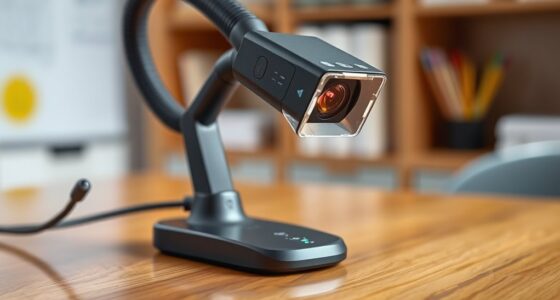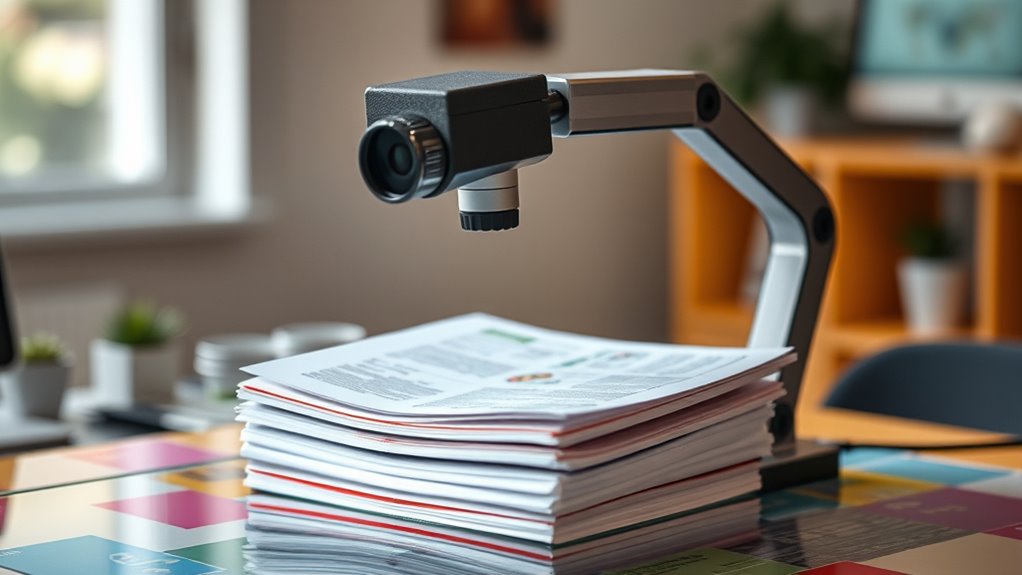

Using a document camera as a scanner lets you quickly digitize physical items with ease and flexibility. You can capture high-quality images of documents, fragile items, or irregular shapes without needing a bulky scanner. The camera’s built-in annotation tools make notes or highlights on images directly, saving time. Plus, you can save files in formats like PDF and JPEG for instant sharing or editing. Keep exploring, and you’ll discover how to maximize these features for your needs.
Key Takeaways
- Use document cameras as handheld scanners for fast digitization of documents, pages, or objects of various sizes.
- Take advantage of built-in annotation tools to mark up images directly during scanning for immediate edits.
- Save scanned images in multiple formats like PDF or JPEG for easy sharing and integration into digital workflows.
- Adjust focus and lighting settings to capture high-quality, detailed images of small text or intricate designs quickly.
- Benefit from space-saving, versatile scanning that allows swift movement across documents without traditional bulky scanners.
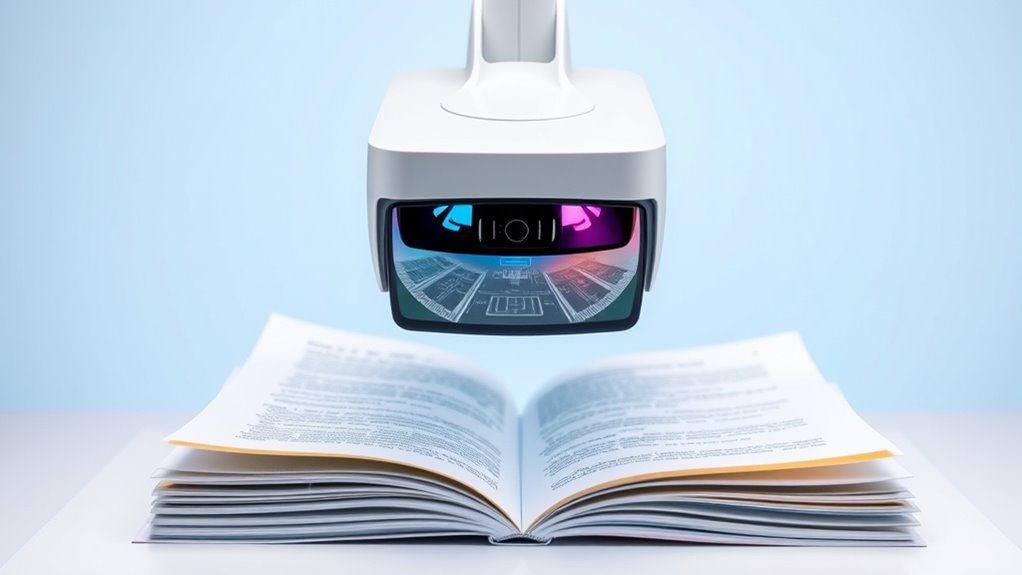
Document cameras are versatile tools that can serve as effective scanners, saving you time and space. When you need to digitize documents quickly, handheld scanning with a document camera offers a flexible and efficient solution. Instead of lugging out a traditional scanner or copier, you simply position the document beneath the camera and capture a clear image. This method is especially useful for scanning irregularly shaped items, fragile documents, or materials that are too large for standard scanners. Handheld scanning with a document camera allows you to swiftly move across pages or objects, ensuring you don’t miss anything, which makes the process faster and more adaptable to your needs.
Once you’ve captured the image, digital annotation becomes a powerful feature to enhance your workflow. With digital annotation tools integrated into many document camera software, you can directly mark up or add notes to the scanned images. This is particularly helpful if you’re reviewing documents, highlighting key information, or making edits without needing to print the image again. Digital annotation streamlines your process, enabling you to make quick notes, underline important sections, or even add comments, all within the same interface. This eliminates the need for separate tools or software, saving you time and keeping your workflow seamless.
Digital annotation tools streamline reviewing and editing scanned images directly within the same interface.
Using a document camera for scanning also simplifies storage and sharing. After capturing the image and annotating it as needed, you can easily save the digital file in multiple formats, such as PDF or JPEG. These formats are widely compatible with various devices and software, making sharing straightforward. You can email the scanned documents directly, upload them to cloud storage, or incorporate them into presentations or reports. This quick shift from physical to digital means you can distribute information immediately, reducing delays and improving collaboration.
Furthermore, the clarity of images captured by document cameras is generally high, especially when paired with adjustable focus and lighting controls. This ensures that even small text or intricate details are legible, which is essential for accurate digitization. The ability to perform handheld scanning offers unparalleled convenience, allowing you to scan documents in different environments without the need for bulky equipment. The combination of fast image capture, digital annotation, and easy storage makes using document cameras as scanners an efficient choice for educators, professionals, or anyone needing swift digital copies of physical materials. Overall, they provide a practical, space-saving alternative to traditional scanners while maintaining high-quality results and flexible editing options.

Epson Workforce ES-580W Wireless Color Duplex Tax Receipt & Desktop Document Scanner for PC and Mac with 100-sheet Auto Feeder (ADF), Intuitive 4.3' Touchscreen
EFFORTLESS WIRELESS SCANNING – With a 4.3" touchscreen and wireless connectivity, this high-speed scanner sends scans straight to...
As an affiliate, we earn on qualifying purchases.
Frequently Asked Questions
Can Document Cameras Scan Multiple Pages at Once?
Yes, many document cameras can handle multi-page scanning thanks to automatic page detection features. You simply place multiple pages under the camera, and it automatically recognizes and captures each one. This makes multi-page scanning quick and efficient, saving you time. Just verify your camera model supports automatic page detection and multi-page scanning capabilities, so you can easily digitize entire documents in one seamless process.
How Do I Improve Image Quality With a Document Camera?
Did you know adjusting resolution settings can boost your image quality by up to 50%? To improve your document camera’s image, start by optimizing lighting adjustments—use natural or diffused light to reduce shadows. Then, tweak the resolution settings to the highest possible quality. These simple steps ensure your scans are sharp, clear, and professional-looking, making your digital copies much easier to read and share.
Are Document Cameras Compatible With All Operating Systems?
Yes, document cameras are compatible with most operating systems, but you should check their software compatibility before purchasing. Confirm your device meets the hardware requirements, such as USB or HDMI ports, and verify if the camera’s drivers support your OS version. Many brands offer cross-platform software, making integration smoother. Always review the manufacturer’s specifications to confirm your system can handle the camera’s software and hardware needs effectively.
What File Formats Are Supported for Saved Images?
You can save images in formats like JPEG, PNG, and TIFF, which are perfect for high image resolution and quality. As you capture a document, imagine crisp details and vibrant colors, with file compression keeping your files small yet clear. These formats guarantee your scanned images stay sharp and easy to share, whether for professional presentations or personal archives. Your document camera makes digitization seamless, turning physical pages into versatile digital files.
Can Document Cameras Automatically Organize Scanned Files?
Yes, many document cameras come with auto organization features that help you manage your scanned files efficiently. You can set up file naming conventions, which automatically assign consistent names to your scans, making it easier to find them later. These features streamline your workflow by automatically sorting and naming files as you scan, saving you time and reducing manual effort in organizing your digital documents.

Epson WorkForce ES-50 Portable Sheet-Fed Document Scanner for PC and Mac
Fastest and lightest mobile single sheet fed document scanner in its class(1) small, portable scanner ideal for easy,...
As an affiliate, we earn on qualifying purchases.
Conclusion
By now, you realize that using document cameras as scanners transforms your digitization process into an effortless breeze. With just a few simple adjustments, you can turn what once took hours into minutes—possibly the fastest method known to mankind. Embrace this innovative approach, and you’ll wonder how you ever managed without it. Say goodbye to bulky scanners and hello to seamless, lightning-fast scanning that makes your workflow feel like pure magic.

Epson Workforce ES-400 II Color Duplex Desktop Document Scanner for PC and Mac with Auto Doc Feeder (ADF), Image Adjustment Tools
FAST DOCUMENT SCANNING – Speed through stacks with the 50-sheet Auto Document Feeder, perfect for office scanning and...
As an affiliate, we earn on qualifying purchases.

ScanSnap iX2500 Wireless or USB High-Speed Cloud Enabled Document, Photo & Receipt Scanner with Large 5" Touchscreen and 100 Page Auto Document Feeder for Mac or PC, Black
OUR MOST ADVANCED SCANSNAP. Large touchscreen, fast 45ppm double-sided scanning, 100-sheet document feeder, Wi-Fi and USB connectivity, automatic...
As an affiliate, we earn on qualifying purchases.