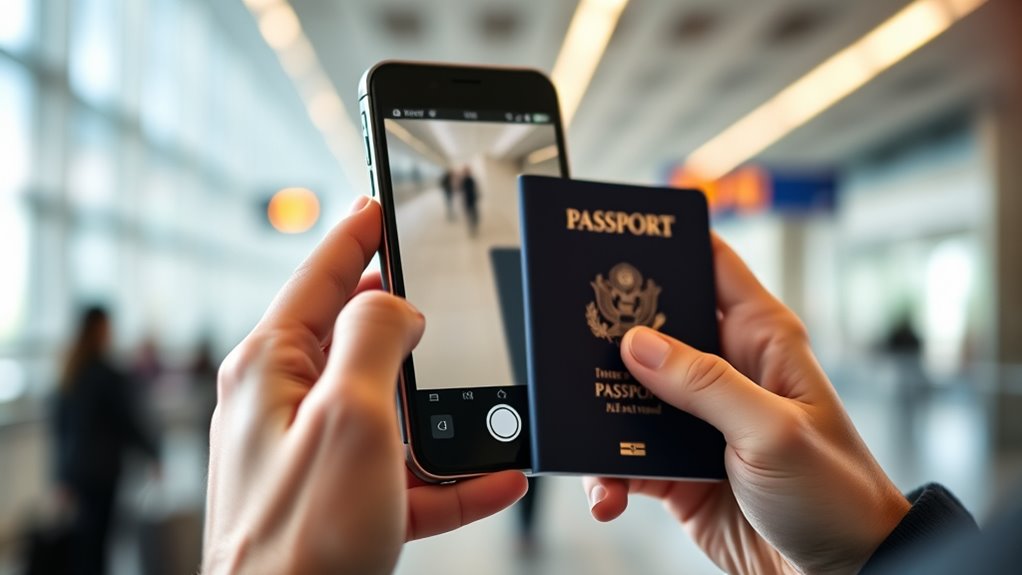

To scan travel documents on the go, choose a reliable app like Adobe Scan or CamScanner that offers auto-cropping, enhancements, and multiple file formats. Make certain your device is secure with encryption and strong passwords, and create backups on cloud services or external drives. Avoid public Wi-Fi when uploading sensitive info, and always double-check scans for clarity. Keep physical copies as backups, and if you stick with these tips, you’ll improve your travel prep considerably.
Key Takeaways
- Choose reputable scanning apps with features like automatic enhancement, cropping, and multiple format support (PDF, JPEG).
- Enable app security with passwords or biometric locks and keep your device software up to date for protection.
- Organize documents into folders within the app and review scans for clarity before saving or sharing.
- Create and maintain multiple backups on cloud services and local devices for redundancy and safety.
- Avoid public Wi-Fi when uploading sensitive documents and log out of cloud accounts after use to prevent unauthorized access.
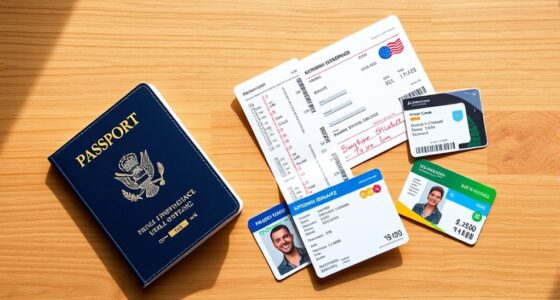
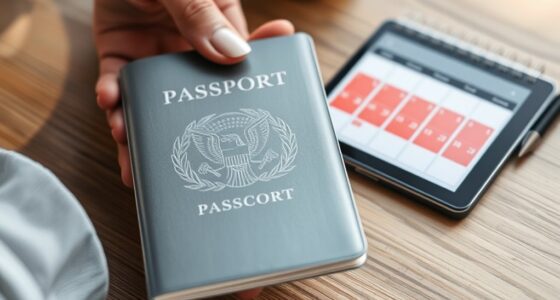
Ever found yourself scrambling to locate a travel document at the last minute? It’s a stressful situation that can easily ruin your mood before even starting your trip. That’s where scanning your travel documents on the go becomes a game-changer. By digitizing your passport, visa, boarding passes, and other essential papers, you create a digital backup that’s accessible anytime, anywhere. But it’s vital to prioritize passport security while doing so. You want to keep your sensitive information safe from prying eyes or potential cyber threats. Using reputable apps with robust encryption ensures that your digital backups stay secure. Many apps offer password protection or biometric locks, adding an extra layer of defense. When you scan documents, make sure to save them in a secure location on your device or cloud service, preferably one with two-factor authentication enabled. That way, even if your device gets lost or stolen, your documents remain protected.
Digitize your travel documents securely with encryption, password protection, and backups to stay stress-free on the go.
Choosing the right app is essential for seamless scanning on the go. Look for options that automatically enhance image quality, crop out unnecessary parts, and support multiple file formats like PDF or JPEG. Some apps also let you organize your documents into folders, making it easier to find what you need quickly. As you scan, double-check the clarity of each document—blurry scans won’t be helpful if you need to show them at customs or airlines. Always review your digital copies to make sure all information is legible and complete before storing or sharing them. Additionally, understanding your projector bulb maintenance needs can help ensure your devices are always ready for your travels, especially if you plan to use portable projectors during your trip.
In addition to that, consider creating multiple digital backups across different platforms. Upload copies to a secure cloud service and keep a local copy on your device. This way, if one backup gets compromised or inaccessible, you still have others to rely on. Remember, digital backups are incredibly convenient, but they shouldn’t replace physical copies entirely. Keep a few printed versions of your essential documents in a safe place, especially in case of technical failures or connectivity issues during travel.
Finally, stay vigilant about your device’s security. Keep your software updated, avoid public Wi-Fi networks when accessing sensitive documents, and always log out of cloud accounts when finished. With the right apps and a few simple precautions, scanning travel documents on the go becomes an easy, efficient way to streamline your journey, reduce stress, and ensure your important documents are always within reach.
Frequently Asked Questions
How Secure Are Travel Document Scanning Apps?
Travel document scanning apps generally prioritize your biometric data security by using strong app encryption standards to protect your sensitive information. However, you should be cautious, as security varies between apps. Always choose reputable apps with positive reviews, ensure they use end-to-end encryption, and avoid sharing your scans unnecessarily. Staying vigilant helps keep your data safe while you scan documents on the go.
Can Scanned Documents Be Used for Official Purposes?
You can often use scanned documents for official purposes if they include digital signatures and are secured with document encryption. These security features verify authenticity and protect data integrity, making your scans more credible. However, always check the specific requirements of the organization or authority you’re submitting to, as some may still prefer original documents or certified copies. Using secure apps with encryption guarantees your scanned documents remain trustworthy and accepted.
Do Scanning Apps Work Offline or Require Internet?
Most scanning apps offer offline functionality, so you can scan documents without needing an internet connection. Your device’s app compatibility determines if this feature is available; check app details before downloading. Once installed, you can scan and save documents offline, making it convenient for travel or areas with limited connectivity. Just make sure your app supports offline use, and you’ll be able to scan whenever you need, anytime, anywhere.
How to Ensure High-Quality Scans in Poor Lighting?
To get high-quality scans in poor lighting, you’ll need more than just luck. First, improve your lighting conditions—think bright, natural light or a well-lit room. Use your camera’s stabilization features to prevent blurry images, and hold your device steady—no shaky hands allowed! For best results, avoid shadows and glare, and tap to focus. With patience and a steady grip, your scans will shine brighter than your travel memories.
Are There Size or Format Limits for Scanned Documents?
You should check the app’s document size restrictions and supported file formats before scanning. Most apps set a maximum file size, like 10MB, and support formats such as PDF, JPEG, or PNG. To avoid issues, keep your scans within these limits and choose compatible formats. If your document is large, consider compressing it or splitting it into smaller files to ensure smooth uploads and easy sharing.
Conclusion
With the right apps and tips, you’re equipped to turn your smartphone into a trusty passport guardian, keeping your travel documents safe and accessible wherever you go. Think of your device as a digital safety net, catching any mishaps or lost papers before they become a headache. So, stay prepared and scan on the fly—your journey’s safety net is just a tap away, ready to catch you if things go awry.