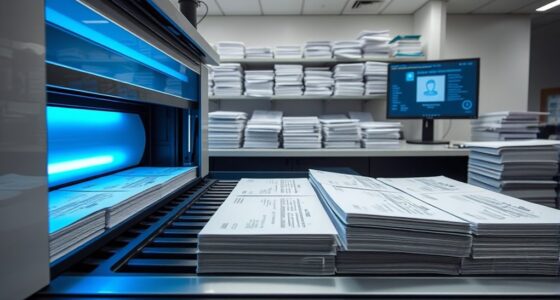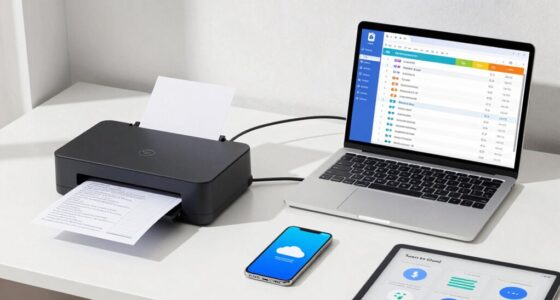

Choosing between scanning to PDF or saving as an image depends on your needs. PDFs offer compressed, multi-page files with preserved formatting, making them ideal for archiving, sharing, and searching text. Images are better for quick visuals or single visuals without the need for editing. If you want searchable, easily shareable documents, PDFs are usually the better option. Keep exploring to find out which format suits your specific tasks best.

Prime made for students and young adults
- Fast, free delivery for dorm and study essentials
- Prime Video and Amazon Music included
- Member-only deals
Key Takeaways
- PDFs efficiently compress documents for storage and sharing, especially for multi-page or long reports.
- Scanning to PDF with OCR enhances searchability, editing, and text extraction capabilities.
- Images are suitable for quick visual references but lack advanced features like search and annotations.
- PDFs preserve formatting, fonts, and layout, making them ideal for professional, long-term document management.
- Choose PDFs for searchable, editable documents; opt for images for simple snapshots or visual content.
When deciding whether to scan documents as PDFs or images, it is essential to understand the differences and how each format suits your needs. PDFs are versatile and widely used for storing multi-page documents, while images are typically better for single, simple visuals. One key factor to consider is file compression. PDFs often feature advanced compression algorithms that reduce file size without markedly sacrificing quality, making them ideal for archiving or sharing large documents efficiently. Images, on the other hand, usually rely on formats like JPEG or PNG, which may not provide the same level of compression, resulting in larger files for complex images. If you’re dealing with lengthy reports or multi-page documents, PDFs can keep storage manageable, whereas images could quickly become unwieldy.
PDFs offer advanced compression and multi-page support, making them ideal for efficient, long-term document storage.
Another essential aspect is OCR technology. Optical Character Recognition allows you to convert scanned images or PDFs into editable and searchable text. When scanning a document as a PDF, OCR can be embedded into the process, enabling you to extract text from the entire document efficiently. This feature is invaluable if you need to edit or search through large volumes of text later. Conversely, scanning as an image often results in a non-searchable file unless OCR is applied afterward, which adds an extra step. If your goal is to create documents that are easy to edit, annotate, or search, PDFs with integrated OCR are the smarter choice.
The format you choose also impacts how easily you can manipulate or share your files. PDFs are designed to preserve formatting, fonts, and layout, ensuring your document looks consistent across devices and platforms. They support features like hyperlinks, annotations, and digital signatures, making them suitable for formal or professional documents. Images lack these capabilities and are primarily used for visual content. If you’re sharing a simple photo or diagram without the need for text search or editing, an image file might suffice. However, if you need to distribute multi-page documents or want to retain the original layout, PDFs are more practical.
Lastly, consider the purpose of your scanned files. For archival purposes, PDFs with compression and OCR provide a compact, searchable, and durable format. If you’re capturing a visual reference or a quick snapshot, images are straightforward and faster to create. But for long-term document management, especially when editing and searching are involved, PDFs clearly stand out as the better option. Making the right choice depends on your specific needs, but understanding these key differences helps you select the best format for your workflow. Additionally, understanding file formats and their respective capabilities can further optimize your digitization process.
Popular right now

Ninja Foodi Smart 6-in-1 Indoor Grill and Air Fryer, 4 Qt, Black/Silver, FG551

Bose QuietComfort Wireless Noise-Cancelling Headphones, Cypress Green

Ninja DZ801 DualZone 6-in-1 Air Fryer, 8 Qt, Grey
As an affiliate, we earn on qualifying purchases.
Frequently Asked Questions
Can Scanned PDFS Be Edited Easily?
Yes, scanned PDFs can be edited easily, especially if they include handwriting recognition or OCR accuracy. When you use OCR technology, it converts scanned images into editable text, making modifications straightforward. Keep in mind, though, that the quality of OCR accuracy varies depending on the clarity of the scan and the handwriting style. For best results, choose a high-quality scanner and OCR software with strong handwriting recognition capabilities.
Which Format Offers Better Long-Term Storage?
Imagine safeguarding your memories forever—PDFs offer better long-term storage because of their superior format longevity. In digital archiving, PDFs remain accessible and intact over decades, resisting corruption and quality loss. Images, while simple, may degrade or become incompatible as technology evolves. You want a reliable format that preserves your files for the future, making PDF the clear choice for enduring digital archiving and lasting peace of mind.
How Do File Sizes Compare Between PDFS and Images?
You’ll find that PDFs usually have smaller file sizes than images because of their better compression efficiency, especially for text-heavy documents. However, the resolution impact is significant—higher resolution scans increase file size for both formats. When you optimize for storage, consider compressing PDFs with suitable settings, while lowering image resolution can also reduce size. Overall, PDFs often offer more efficient storage for multi-page documents compared to individual images.
Are There Compatibility Issues With Certain Devices?
You might face device compatibility issues depending on the format you choose. PDFs generally have broader software support and work seamlessly on most devices, including smartphones, tablets, and computers. Images can sometimes pose problems if the device lacks the right software or app to open specific formats like TIFF or HEIC. To avoid frustration, opt for PDFs when sharing across different devices, ensuring better compatibility and easier access.
What Are the Security Options for Each Format?
Think of your files like a house; security options protect your valuables. With PDFs, you can add encryption and set access controls, making them more secure. Images, however, offer limited security features, often relying on external software for protection. You might encrypt a PDF for sensitive documents, ensuring only authorized people access them. Conversely, images lack built-in security, so you’d need additional tools to safeguard their content.
Conclusion
So, when you choose between scanning to PDF or image, you’re literally deciding whether to create a sleek, organized library that’s easier to find than your keys or a chaotic pile of snapshots that’s impossible to navigate. PDFs are the superheroes of clarity, saving you from digital chaos, while images are like cluttered photo albums buried under mountains of files. Pick the format that turns your clutter into a well-oiled, easily searchable digital masterpiece—your future self will thank you!