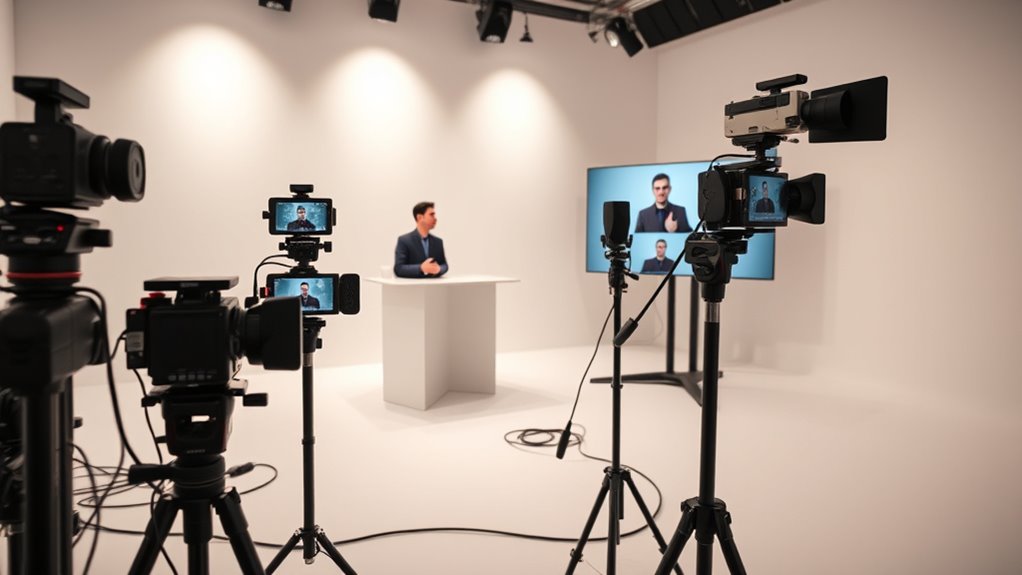

Using a multi-camera setup for your remote presentations can boost professionalism and audience engagement. Position cameras at eye level and experiment with angles to keep visuals dynamic. Use soft, consistent lighting with three-point techniques to guarantee clear images from all viewpoints. Switching smoothly between perspectives and maintaining balanced lighting enhances the overall quality. Keep refining your setup for the best results—continue exploring these techniques to make your presentations truly stand out.

Prime made for students and young adults
- Fast, free delivery for dorm and study essentials
- Prime Video and Amazon Music included
- Member-only deals
Key Takeaways
- Use multiple cameras at eye level with consistent lighting to create engaging, natural-looking visuals.
- Incorporate various angles like wide shots and close-ups to emphasize key points and maintain viewer interest.
- Balance lighting across all cameras with soft, diffused sources and three-point lighting for seamless switching.
- Experiment with perspectives and camera positions to enhance visual variety without overwhelming the audience.
- Test and adjust camera angles and lighting together to ensure clear, professional footage during transitions.
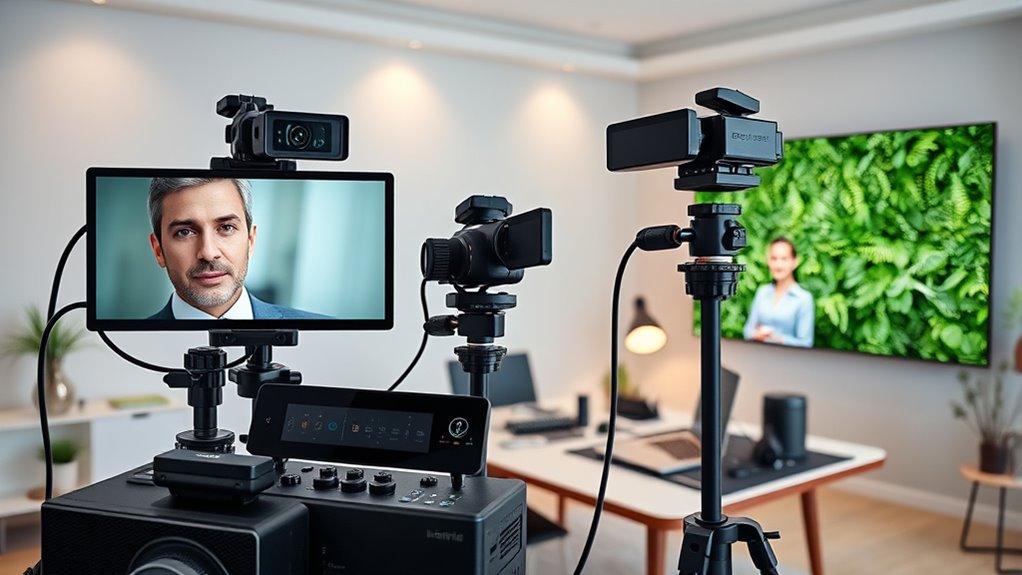
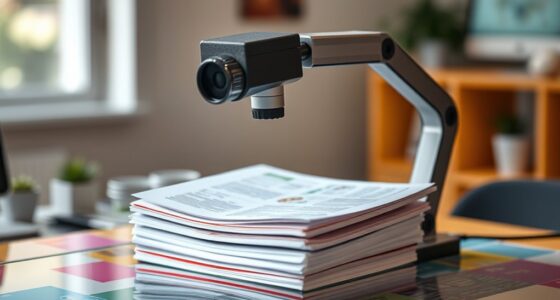
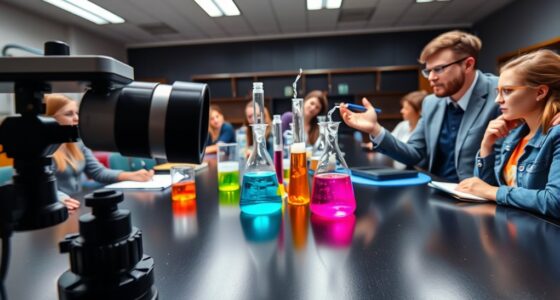
In remote presentations, using multiple cameras can substantially enhance your delivery by providing dynamic visuals and engaging your audience. This setup allows you to switch between different perspectives, making your presentation more lively and professional. To maximize this effect, pay close attention to camera angles. Position your cameras at eye level to create a natural, relatable connection with your viewers. Avoid extreme angles that might distort your image or feel unsettling. Instead, experiment with slightly different perspectives—such as a wide shot for the introduction or main content, and a close-up for emphasizing key points or expressions. This variety keeps your audience visually interested and helps convey your message more effectively.
Using multiple cameras with well-chosen angles creates engaging, professional remote presentations.
Lighting techniques are equally vital when working with multiple cameras. Proper lighting ensures that each camera captures clear, well-lit footage, regardless of where it’s positioned. Use soft, diffused light sources to eliminate harsh shadows and create an even glow on your face. Consider employing three-point lighting—key light, fill light, and backlight—to add depth and dimension to your shot. When switching between cameras, make sure the lighting remains consistent to avoid distracting flickers or shifts in brightness. If you’re using different locations or backgrounds, adjust your lighting accordingly to maintain a cohesive look. Small adjustments, like adding a ring light or using natural light sources effectively, can greatly improve the overall quality of your visuals. Additionally, understanding the color temperature of your lighting helps ensure your footage appears natural and consistent across different camera angles.
Balancing your camera angles and lighting techniques not only enhances the professionalism of your remote presentation but also helps you come across as confident and polished. When planning your setup, test each camera angle beforehand to see how it interacts with your lighting. Adjust the placement until you achieve the right balance between clarity and visual interest. Remember that the goal is to keep your audience engaged without overwhelming them with constant movement or inconsistent visuals. Strategic camera angles combined with good lighting create a seamless viewing experience that emphasizes your message and maintains viewer attention throughout.
Ultimately, mastering camera angles and lighting techniques in a multi-camera setup elevates your remote presentations from ordinary to engaging. It shows you’ve invested effort into delivering high-quality content, which encourages your audience to stay engaged and retain more of what you share. Keep experimenting and refining your setup, and you’ll find that your presentations become more dynamic, professional, and impactful.
Frequently Asked Questions
How Much Does a Professional Multi-Camera Setup Typically Cost?
A professional multi-camera setup usually costs between $2,000 and $10,000, depending on your camera gear and desired quality. Setup costs include cameras, switches, microphones, and lighting, which can add up quickly. You might find affordable options to start, but investing in high-quality gear guarantees better image and sound. Keep in mind that your specific needs and the complexity of your setup will influence the overall price.
What Are the Best Brands for Remote Multi-Camera Systems?
You’re enthusiastic to find the best remote multi-camera system, and top brands like Sony, Panasonic, and Blackmagic Design stand out. These camera brands offer reliable quality, advanced features, and seamless system compatibility, ensuring your setup looks professional. But don’t settle too quickly—each brand’s strengths can elevate your presentation, so look closely at your needs and choose a system that delivers both performance and peace of mind.
How Do I Troubleshoot Connectivity Issues During a Live Presentation?
When troubleshooting connectivity issues during a live presentation, first check your network stability by testing your internet speed and connection strength. If problems persist, switch to backup solutions like a secondary Wi-Fi network or a wired Ethernet connection to guarantee uninterrupted streaming. Also, restart your devices and update your software, which can resolve common glitches. Staying prepared with backup solutions helps you maintain a smooth, professional presentation despite connectivity hiccups.
Can I Use Smartphones as Additional Camera Sources?
Yes, you can use smartphones as additional camera sources. For effective smartphone integration, choose a reliable camera app that supports high-quality video streaming or direct camera feed sharing. make certain your phones are connected to the same Wi-Fi network and set up the apps correctly. This way, your smartphones can seamlessly act as additional cameras, enhancing your remote presentation with varied angles and professional visuals.
What Are the Best Practices for Switching Between Multiple Cameras Seamlessly?
Did you know that smooth camera switching can boost viewer engagement by up to 80%? To achieve seamless *handoffs*, practice camera switching and use *changeover* techniques like fades or cuts. Plan your cues in advance, keep your *shifts* brief, and stay steady during camera changes. Using a switcher or software with hotkeys can help you switch cameras quickly, ensuring your presentation remains professional and *engaging* without distracting your audience.
Conclusion
With a multi-camera setup, you’re orchestrating a symphony of visuals that captivate your audience. Think of it as painting with light and motion, creating a dynamic tapestry that keeps viewers engaged from start to finish. When you master this setup, you’re not just presenting—you’re inviting your audience into a vibrant, immersive experience. So, turn the gears and let your presentation shine like a beacon of professionalism across the digital sea.
Halloween Picks
halloween
As an affiliate, we earn on qualifying purchases.